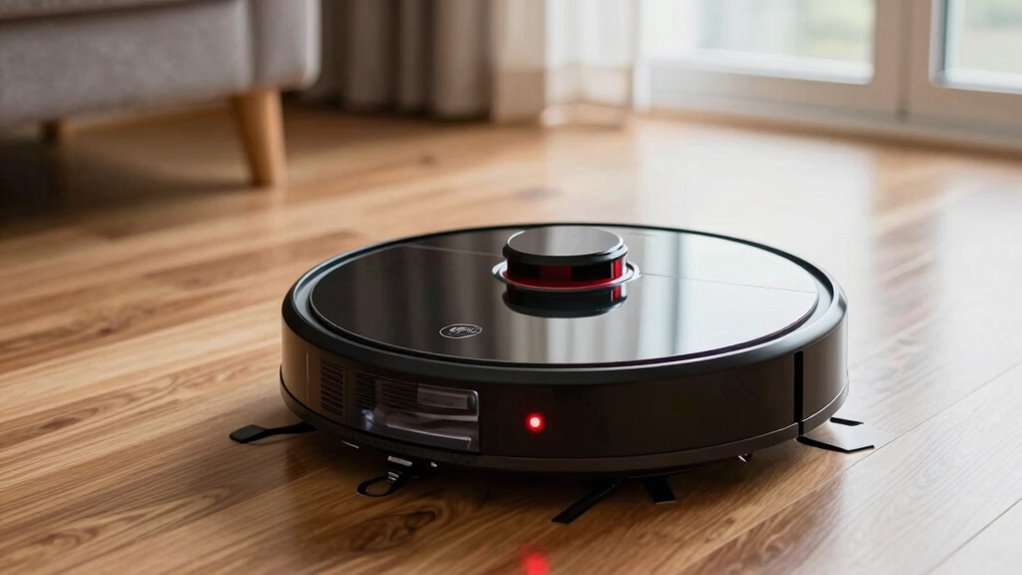

If your robot vacuum shows a “bin full” error even when it’s empty, start by removing and thoroughly cleaning the dustbin to remove dust and debris that may block sensors. Also, inspect and gently clean the sensor near the dustbin compartment with a soft cloth or cotton swab dipped in alcohol. Regular maintenance and updates can prevent false alerts, and if problems persist, there are additional steps you can try to fix the issue. Keep going to learn more.

Get cleaning gear delivered free with Prime
- Fast, free delivery on millions of items
- Prime Video, Amazon Music and more included
- Member-only deals all year
Key Takeaways
- Ensure the dustbin is fully emptied and clean to remove debris that may block sensors.
- Inspect and clean the dustbin sensors with a soft cloth or alcohol wipe to ensure proper detection.
- Reinstall the dustbin correctly, making sure it is securely seated to trigger the sensor properly.
- Perform sensor recalibration or firmware updates as per manufacturer instructions to fix detection issues.
- Reset the vacuum or consult customer support if the error persists after cleaning and recalibration.
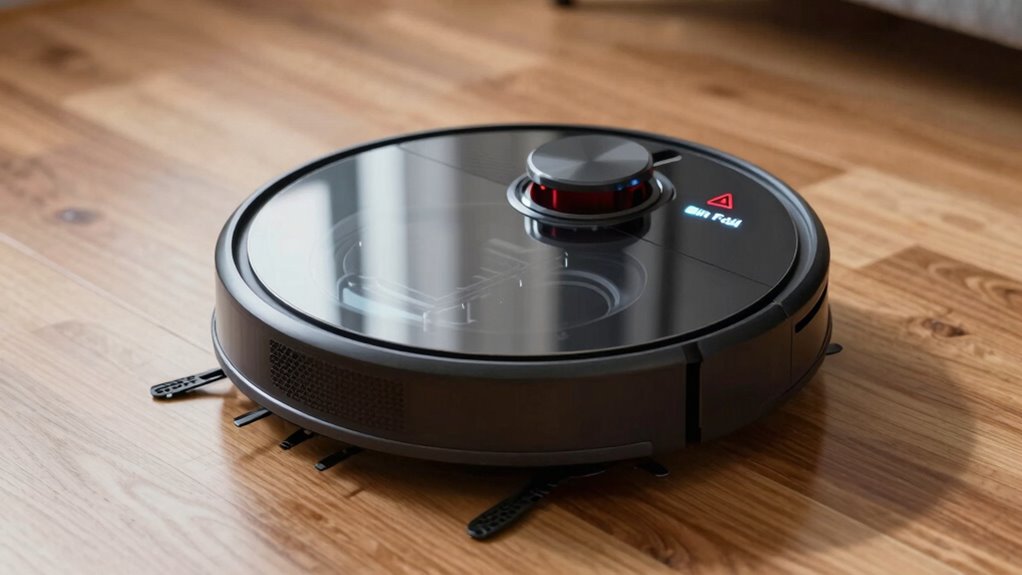
If your robot vacuum displays a “bin full” error, it’s likely because the dustbin has reached its capacity and needs to be emptied. Sometimes, even after emptying the bin, the error persists, which can be frustrating. This is often due to issues with robot vacuum maintenance or problems with the troubleshooting bin sensor. Understanding these elements can help you resolve the issue quickly.
First, verify you’ve properly emptied the dustbin. Sometimes, debris can stick to the sides or clog the opening, preventing the sensor from recognizing that the bin is empty. Remove the dustbin and give it a thorough cleaning, wiping it down with a damp cloth to remove dust and debris. Make sure the dustbin is dry before reinstalling it. Proper maintenance of the dustbin is vital; neglecting this can cause sensors to malfunction or give false readings. Regularly cleaning the dustbin and its sensors helps maintain peak performance and reduces false “bin full” alerts.
Ensure dustbin is thoroughly cleaned and dry to prevent false “bin full” alerts and sensor malfunctions.
If the dustbin is empty and the error still appears, the problem might lie with the troubleshooting bin sensor. These sensors are designed to detect whether the dustbin is full and signal the vacuum to stop cleaning or alert you. Over time, dust, dirt, or debris can accumulate on the sensor or its housing, impairing its ability to function correctly. Carefully inspect the sensor area, which is often located near the dustbin compartment. Gently clean it with a soft cloth or a cotton swab dipped in isopropyl alcohol. Be cautious not to damage or dislodge the sensor during cleaning. Sometimes, the sensor may become misaligned or faulty, requiring a reset or replacement. Additionally, sensor calibration can drift over time, affecting accuracy and necessitating recalibration procedures recommended by the manufacturer.
Additionally, check for any software updates or resets recommended by your robot vacuum’s manufacturer. Firmware updates can improve sensor calibration and overall performance. If cleaning and maintenance don’t resolve the issue, consult the troubleshooting guide or contact customer support. Some models have specific reset procedures to recalibrate the sensors and clear false error messages.
Products Worth Considering

Shark Clean & Empty Cordless Stick Vacuum with Auto-Empty System, BU3521

Shark PowerPro Reveal Plus Cordless Vacuum Cleaner, Charcoal, IZ376H

eufy Security Video Doorbell E340 Kit with Chime, 2K Resolution and 8GB Local Storage
As an affiliate, we earn on qualifying purchases.
Frequently Asked Questions
Can Software Glitches Cause the ‘Bin Full’ Error?
Yes, software bugs and sensor malfunctions can cause the ‘bin full’ error even when the bin is empty. If your robot vacuum’s software has glitches, it might misinterpret sensor signals, leading to false alerts. Sensor malfunctions can also prevent the vacuum from detecting that the bin is actually empty. Restarting the device or updating the software often fixes these issues, but if problems persist, professional repair may be necessary.
Does the Error Affect the Vacuum’s Battery Life?
Yes, the ‘bin full’ error can affect your vacuum’s battery life. When the bin isn’t recognized as full or there’s a software glitch, the vacuum might continue to run longer than necessary, causing unnecessary battery drain. This increased power consumption can shorten your device’s overall battery life over time. To prevent this, clear the bin regularly and make sure the sensors are clean and functioning correctly.
How Does the Bin Sensor Work Internally?
Ever wondered how that tiny bin sensor knows when it’s full? It works by detecting the level of debris inside the bin, usually with a sensor that measures changes in light or capacitance. If you encounter a sensor malfunction, a hardware inspection helps identify issues like dirt buildup or damaged components. This guarantees your vacuum correctly signals when it’s full, preventing errors and keeping your cleaning routine smooth.
Can Cleaning the Sensor Resolve the Error?
Yes, cleaning the sensor can resolve the error. You should gently perform sensor cleaning by wiping it with a soft, dry cloth or a cotton swab to eliminate dust or debris. Afterward, reset the error by turning the robot off and on again. This process helps guarantee the sensor functions correctly, preventing false ‘bin full’ alerts and allowing your vacuum to operate smoothly.
Is There a Way to Reset the Error Message Manually?
Think of resetting the error message as hitting the restart button on your robot vacuum’s mind. To do a bin reset, turn off the vacuum, remove the bin, and reinsert it securely. Then, press and hold the power button for 10 seconds. This simple step often clears the error, making error troubleshooting easier. If it persists, consult your user manual or contact support for further guidance.
Conclusion
Even when your robot vacuum reports a ‘bin full’ error despite being empty, remember that sometimes, technology’s whispers need a gentle nudge. Like a vigilant guardian, it might just be stubbornly guarding its own secrets. Clear the sensors or give it a quick restart, and watch it spring back to life, ready to dance across your floors once more. With patience and a little finesse, you’ll keep this digital helper humming smoothly, like a well-tuned symphony.